You're scrolling Instagram, a Reel pops up with the exact dinner you've been craving, and you tap save. Then it vanishes into a pile of hundreds of other saved posts you'll never scroll back through. And on the rare occasion you do find it again, the recipe is buried in a fast-moving video or a wall of caption text — so you're stuck pausing, rewinding, and squinting while your pan heats up.
Saving an Instagram recipe should be simple. Here are the real ways to do it, from quickest to most useful, so you end up with a recipe you can actually read and cook from.
Why saving Instagram recipes is harder than it should be
Instagram is built for watching, not cooking. Recipes show up in one of three places — spoken in the video, typed in the caption, or shown as text on screen — and sometimes all three, sometimes none of them clearly. Tapping "Save" just bookmarks the post. It doesn't hand you the ingredients and steps as text you can read, shop from, or print. That gap is the whole problem.
Method 1: Save it inside Instagram (fast, but limited)
Tap the bookmark icon under any Reel to save it, and tap-and-hold the icon to file it into a Collection (make one called "Recipes to try"). This takes two seconds and keeps things slightly organized.
The catch: you've saved the post, not the recipe. You still have to rewatch the video every time, and there's no text to glance at while you cook. Fine for "I'll watch this later," useless for "I'm making this tonight."
Method 2: Screenshot or screen-record (manual and messy)
If the recipe is shown as on-screen text, you can screenshot each step or screen-record the whole Reel. It works in a pinch, but you end up with a camera roll full of images instead of a single readable recipe, and fast on-screen text often scrolls by before you can grab it.
Method 3: Copy the caption (only works sometimes)
If the creator typed the full recipe into the caption, you can copy and paste it into your notes. Quick win — when it works.
But a lot of captions are just a sentence and a row of hashtags, or marketing fluff that describes the dish without listing a single measurement. In those cases the real recipe is locked in the video, and copying the caption gets you nothing usable.
Method 4: Convert the Reel into a clean text recipe (the one that actually works)
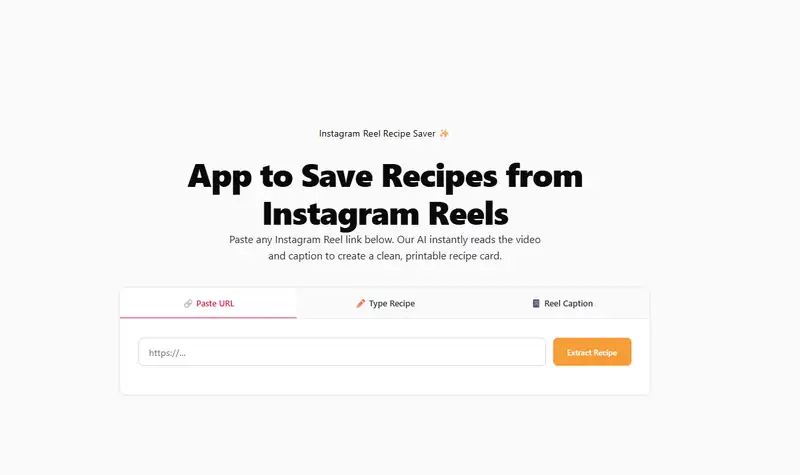
This is the method that reliably gets you a real, usable recipe. Paste the Reel's link into a recipe converter like RecipeLens, and it reads both the video's audio and the caption to pull out the ingredients and step-by-step instructions as clean text — no rewatching, no pausing, no clutter.
Here's the whole process:
- On the Reel, tap the Share arrow, then Copy Link.
- Open RecipeLens and paste the link.
- Get back a clean recipe — ingredients and steps — that you can read, print, or save.
The advantage over the other methods is that it turns a video into actual text, which is the thing you wanted in the first place.
What if the Reel has no caption?
This is where most methods fall apart — there's nothing to copy. A good converter gets around it by reading the spoken audio, so if the creator talks through the recipe out loud, you'll still get a clean version even when the caption is empty.
The one case that's genuinely hard: a silent Reel set to music where the recipe only appears as on-screen text. There's no audio and no caption to read, so you may need to type out what you see. (RecipeLens has a manual paste option for exactly this — just click "Type Recipe".)
A few tips for keeping your saved recipes usable
- Convert first, save second. Turn the Reel into text right away, while you remember why you saved it — then keep the text somewhere you'll actually look.
- Group them. Whether it's an Instagram Collection or your converted-recipe library, having a "want to make" list beats a thousand random saves.
- Save the link, not just the screenshot. A link can always be re-converted; a blurry screenshot can't.
Quick FAQ
Is converting Instagram recipes free?
With RecipeLens, yes — paste a link and get the recipe, no account needed.
Do I need the Instagram app?
No. You just need the Reel's link, which you can copy from the app or the web.
Does it work on TikTok and YouTube too?
Yes — the same paste-a-link approach works across our TikTok converter and YouTube converter as well.
The next time a recipe Reel stops your scroll, you don't have to lose it in your saved folder or rewatch it ten times. Copy the link, convert it to clean text, and it's yours to cook from whenever you want.